
- Published on
Learning Next.js - "Streaming" Chapter 9
- Authors

- Name
- Brett Stockmeier
Introduction
First post of the new year!
This is another pretty simple chapter. And while the material isn't exactly new to me, it's the sort of underappreciated feature I don't usually recognize or credit for how it might improve user experience. It might actually be becoming irrelevant with smaller projects? The internet being as widespread and as fast as it is. This feature benefits large data sets and slower connections the most.
Topics covered
- What "Streaming" is (not the video kind)
- Loading Skeletons (basically "show this until the component is ready to render")
- Route groups - next.js isn't perfect and this is how you maybe fix one of its quirks
Here's the thing aboout streaming: like I said, it might be becoming irrelevant on all but decently sized projects and decently slow connections. For me personally, when I was going through the exercises and trying to observe changes to the app... I'm not sure I really noticed the changes streaming brought on. I understood what was happening, but the results were not always observable. I have checked to confirm I was doing it right though
Streaming
Streaming is handy because not all parts of your project are created equal. Some of them are ready to render faster than others, and some data fetch requests might be dragging down the performance of your entire app for the user. If the whole application is only as fast as your slowest component... that could be an issue someday.
Streaming allows you to single out those slower performing components and permit the page to render before they fully complete. No matter how slow the server-side processes are going, the entire page won't be hamstrung as it waits.
A nice feature of streaming (at least as it's demonstrated here) is that the user is allowed to set the scope of what gets streamed. You aren't singling out components for special treatment, but rather delineating entire code blocks. You do this with the React <Suspense> component.
At least, that's one way to implement it. You can also do the entire page with the reserved file loading.tsx, which creates the <Suspense> component for you.
Loading Skeletons ("but why though?")
Because! If you're going to render the page before every component is ready, you have to consider the question: what are you going to render in place of the components which are not yet ready to be displayed?
Placeholders! The tutorial at one point refers to it as a "fallback UI", and while I'm not entirely sure I agree, it does give the right impression (and it's also the property you use with the <Suspense>, as we'll see). But this isn't a failure on the part of your app (hopefully): it's expected behavior, and this is just an appetizer to whet appetites as you wait for the main course to finish cooking.
Basically, you can return code from loading.tsx to display until the page is ready to display:
export default function Loading() {
  return <div>Loading...</div>;
}
That's a basic fallback UI. Until the page is ready to render, Display the text message "Loading..." to let the user know what's happening behind the scenes.
But while I call this "page level", in truth it's "file level". If a page is made up of multiple components (such as a navigation bar and a content page), and only the content page has streaming configured via <Suspense>, the navigation bar will still load. You can even interrupt loading the page and navigate away if you want! You're free to just interrupt it and walk away to some other page you actually care about viewing!
So. In the example above, we see an example of a very basic fallback UI. "Loading Skeletons" are (as I understand them), actual placeholder images specifically designed to replace part of a page's content that has not finished loading yet.
Or maybe not. Diving into the code provided to us, these aren't images at all, but actually flex properties embedded in <div> components to create the desired effect. So I guess a Loading Skeleton isn't so much an image neccesarrily as it is a custom component. Or maybe it's just a concept. An idea. And what form it takes is limited only by your imagination and skills as a programmer.
Anyway, here's the Skeleton example implemented in Flex I mentioned:
export function CardSkeleton() {
  return (
    <div
      className={`${shimmer} relative overflow-hidden rounded-xl bg-gray-100 p-2 shadow-sm`}
    >
      <div className="flex p-4">
        <div className="h-5 w-5 rounded-md bg-gray-200" />
        <div className="ml-2 h-6 w-16 rounded-md bg-gray-200 text-sm font-medium" />
      </div>
      <div className="flex items-center justify-center truncate rounded-xl bg-white px-4 py-8">
        <div className="h-7 w-20 rounded-md bg-gray-200" />
      </div>
    </div>
  );
}
I guess I need to go spend some more time with flexbox froggy.
Here's an example of <Suspense /> applied on a chunk of code (rather than an entire page) btw:
<Suspense fallback={<CardSkeleton />}>
        <CardWrapper />
</Suspense>
Like I said: "fallback" is the property they elected to pass the placeholder component to. I don't necesarrily agree it's evocative of what exactly we're doing here, but then again they also have call it Suspense. They are very dramatic.
Route Groups - A final warning about streaming and how to avoid a pitfall
The tutorial has you create a bug so it can use Route Groups to fix it. I mentioned in an earlier post that while I was in awe of Next.js's directory structure and how that models the web addresses of the various pages in your app, I also at the time wondered if that might complicate things down the line. Well... here's a solution!
See, because of the way next.js is set up, files will cascade down the file structure. In this case, if I have a dashboard page and an invoice page located deeper in the dashboard file tree... dashboard's properties and files (like say... loading.tsx) will cascade down and be applied to those other files.
Maybe you have planned your app around this behavior and it's what you want. But what if it's not?
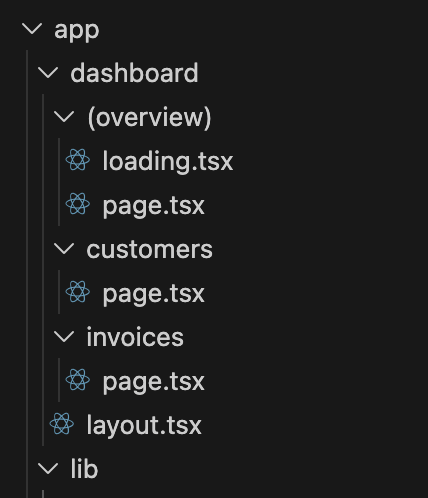
The problem is that dashboard in this example sits at a higher level than it's children. The solution is to bring it down to their level. Route Groups allow you to organize and manipulate your files without affecting the URL path structure. To put it bluntly: any directory that begins with parentheses () is invisible to the URL path logic.
So we stick the dashboard files that are just for the dashboard in a new secret hidden folder, and they stop being applied down the url path.
This is what the file tree looks like after the application of Route Groups:
Pretty elegant honestly!