
- Published on
Learning Next.js - "Creating Layouts and Pages" Chapter 4
- Authors

- Name
- Brett Stockmeier
Introduction
This chapter was genuinely exciting and engaging. I learned a lot about how next.js components interact with each other and can "cascade" down the file system with nested layouts. Hopefully I can demonstrate what I learned below. It's obvious though this chapter had a lot of vital information that is going to be directly relevant to working on the most basic of projects in the future.
Goals of this chapter
- Create the dashboard routes using file-system routing.
- Understand the role of folders and files when creating new route segments.
- Create a nested layout that can be shared between multiple dashboard pages.
- Understand what colocation, partial rendering, and the root layout are.
Nested routing
I have vague memories of in the past working with languages and technologies where routing needed to be made explicit with code written into the project. In this section Next.js introduces its own built in method for handling routing, and I am in love with the elegance of its simplicity.
Simply put, in Next.js, the file system informs the routing.
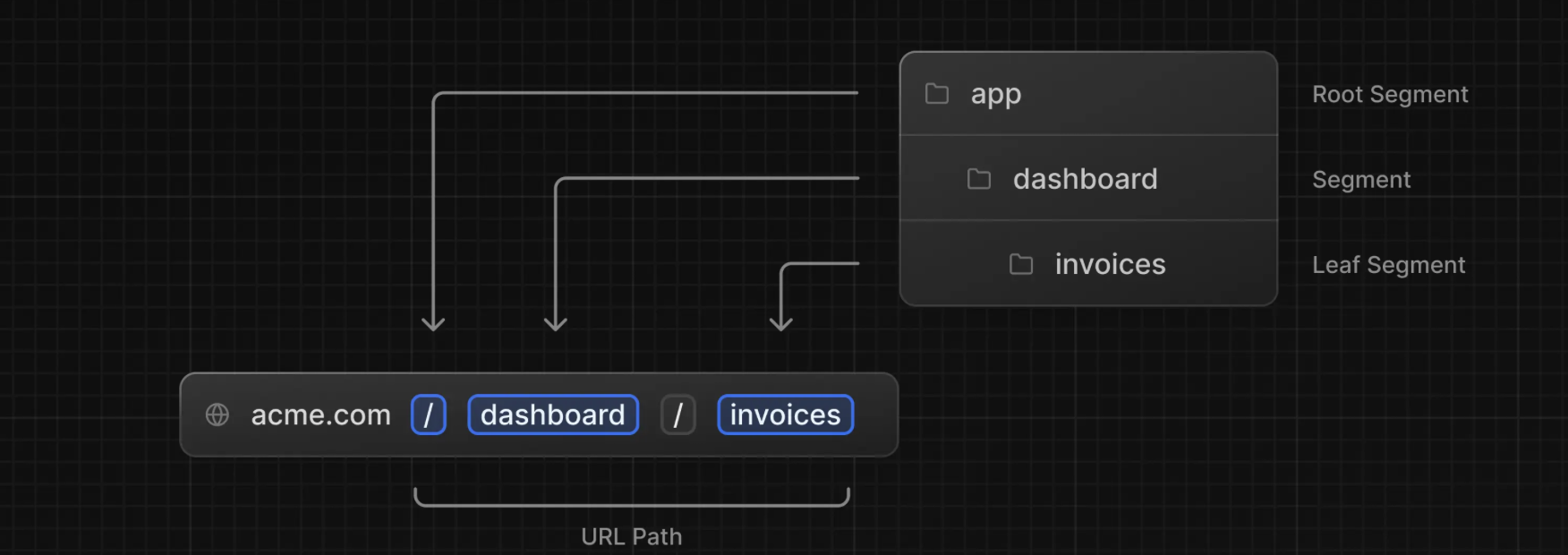
Every folder within a folder corresponds to a new segment of the url a user must navigate to in order to access that content. Is it possible to override or work around this default behavior? Perhaps. Maybe there will be more instruction on how to do just that later on. But for now, I am in awe of the relationship between the project structure and the application behavior. And how the one influences the other. It compels coders to think ahead when making naming and project structure decisions. It encourages planning and smart design.
And similarly, it may also encourage minimal/efficient design? When happhazardly adding files to the file structure can very directly affect the user experience in such a major way, I think I personally would have to second guess some of my decisions.
This also made me wonder almost immediately that Next.js is not immediately suitable for all types of projects. This blog for example is being built with Next.js and Tailwind. And I've been customizing it as I saw fit to help keep content sorted, including adding sub folders. This post for example lies in the blog/coding/tutorials folder. A folder for my coding stuff, and a sub folder for my reactions as I continue to go through the Next.js tutorials.
I didn't realize that my browser was hiding the url from me. Revealing the url of my past posts... I didn't realize how complex they had become. Of course, we are living in the future. Where things like urls and telephone numbers are largely abstracted away. With a minimum of effort, it's something you only need to imput once, and then you let your browser or your cell phone's built in address book remember it for you forever.
Or maybe I'm just the weird one worrying about how long my urls are and nobody else pays such things any mind.
Anyway, the chapter continues to say that to actually create the pages on these routes, you need to add a reserved file: page.tsx. Without this file, navigating to the route will only yield a 404. But regardless of whether you have page.tsx or not, the file structure will still inform the URL.
Creating the Dashboard Page
So putting what we learned in the previous section into practice, adding a new dashboard page to the app (with a URL /dashboard) is a simple matter of creating a new subfolder under the app folder in the project directory. This creates the new route segment of the URL, but there will be no content to serve at that address until a page.tsx is created in the dashboard folder.
And again, having a special name for the file that actually returns the content for that route (page.tsx), you can also store additional supplementary files that can store components and offload code that you don't want in the public file itself. You could even put these helper files in their own subfolder, and nobody would know the difference provided you don't create a page.tsx file to serve content from that address. (this is called "colocation"1 btw)
So... embarassingly enough, while the idea that the folder structure affected URL routing directly initially gave me mixed feelings, in truth, it's very adaptable and impresses me.
The next section (which I'm ommitting talking about) is a simple exercise to add even more new pages building off the dashboard section: customers and invoices. To solve it, you only need to create the proper folders in the dashboard directory and add page.tsx files. I feel this will be an important pattern to reinforce and again, hugely beneficial in my future projects.
Creating the Dashboard Layouts
Having covered content, it's time to worry about the front-end and appearance of the new Dashboard page. But just as we have nested routing in Next.js, we also have nested layouts. And a layout created in the dashboard directory will similarly ripple down to all the sub folders within the dashboard directory (and all the subfolders of those subfolders, and on and on and on).
In the tutorial example, this means that within the Dashboard page, we need to build a navigation component into layout.tsx within the dashboard folder which will have links to access the newly created customers and invoices pages. By putting this new layout into the dashboard directory, we can ensure that this layout will also display for customers and invoices. But it won't ripple upwards to the home page. More simplicity, and more elegance. Next.js is a nesting doll of components and routing that necessitates forethought and planning (or maybe making sweeping changes to the structure of your project will actually be super easy; perhaps that will be covered in a future chapter)
2 more important points from this section:
In this section, from the code given to us to add to the sample project for the new dashboard layout file, we can see that the new layout contains two sections of note: a SideNave component (a prebuilt navigation bar existing on the left side of the application), and a passed property
childrenof typeReact.ReactNode. I'm told this is Typescript Tomfoolery, but basically (as I understand it) it is automatically passing content from anypage.tsxorlayout.tsxfile nested deeper in the file structure. (nested Layouts, nested routing, nested everything; I love it)But also interested from a performance standpoint is the behavior of "partial rendering" that we see happening by default. Basically as you navigate, only the contents from
page.tsxfiles will need to reload/re-render as you go. (This also means that state of layout components will be preserved... the ramifications I understand, but probably don't appreciate currently without a concrete and practical example in front of me beyond the navigation example of the tutorial code)
Root Layout
One more quick callback to stress the importance of the "Root Layout" in the base app directory where we keep all the content and code for the project.
This root layout is required for every Next.js application. Nested layouts means that any code in this section will be shared across all pages in the project, so it's important to think about what you want the user to see here. (it makes me wonder if it's at all possible to strip away this or any other layout further "downstream" or if that's simply not possible; I don't have a pressing need to do this right now though; I'm just curious)
You can also use the root layout to add/modify the metadata of the application, which I'm told will be covered in a later chapter. I assume this will relate to SEO 2
Takeaways
I loved this chapter. It wasn't boring. I feel like I learned a lot. I love the nested routing and nested nature and nested everything about Next.js. I feel like for the first time I'm learning stuff that will actually help me do what I want to do with the technology.
Some of the code also made it clear I have more learning to do than I originally planned though. Gonna need to revisit React sooner or later, and Typescript will be a whole separate series I'm sure.
And also... these posts aren't coming out nearly as fast as I had hoped.